
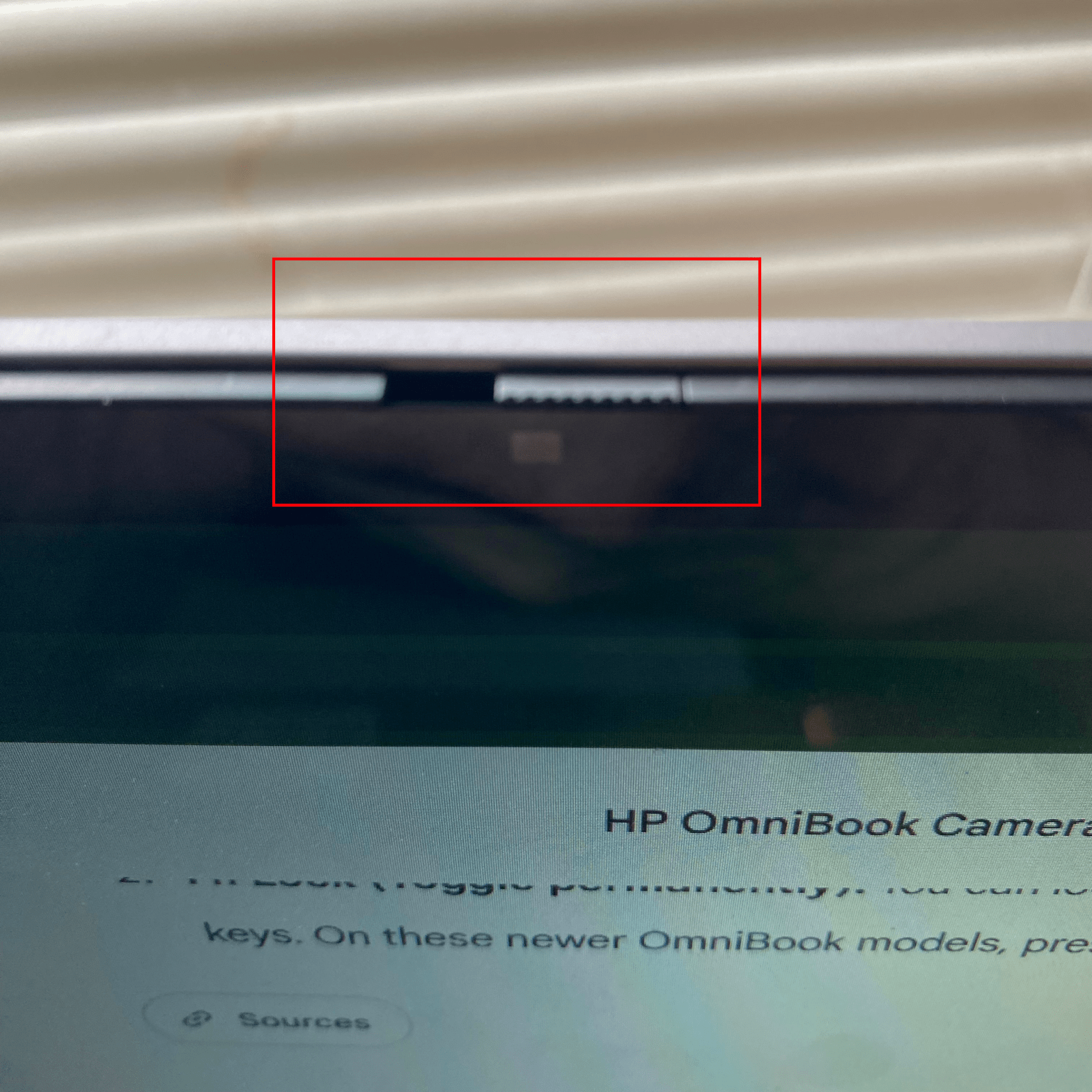
This morning I went to join my 6:00 am client / client’s client meeting and found my camera wasn’t working in Teams.
After the meeting I discovered that it wasn’t working in Google Meet either.
So I turned the computer off and turned it on again…still not working.
After exploring a bit, Windows told me that something else was using the camera…and also told me that something had turned the camera off. I assumed the latter was the correct diagnosis.
After exploring some more, including every function key combination, I found a barely visible switch.
Thanks, Google Gemini:
…there is no keyboard button to turn the camera off.
Instead, HP placed a physical privacy shutter directly at the top of the laptop screen.
Where to look and how to use it:
- Look at the very top bezel (border) of your laptop screen, right where the camera lens is centered.
- Directly next to or built into the glass over the lens, you will see a tiny manual sliding tab.
I slid the tab to the right, and my camera was working again.
I must have slid the shutter to the left yesterday when I transported the computer away from and back to my home.
Learn a new one every day…

 Bredemarket