
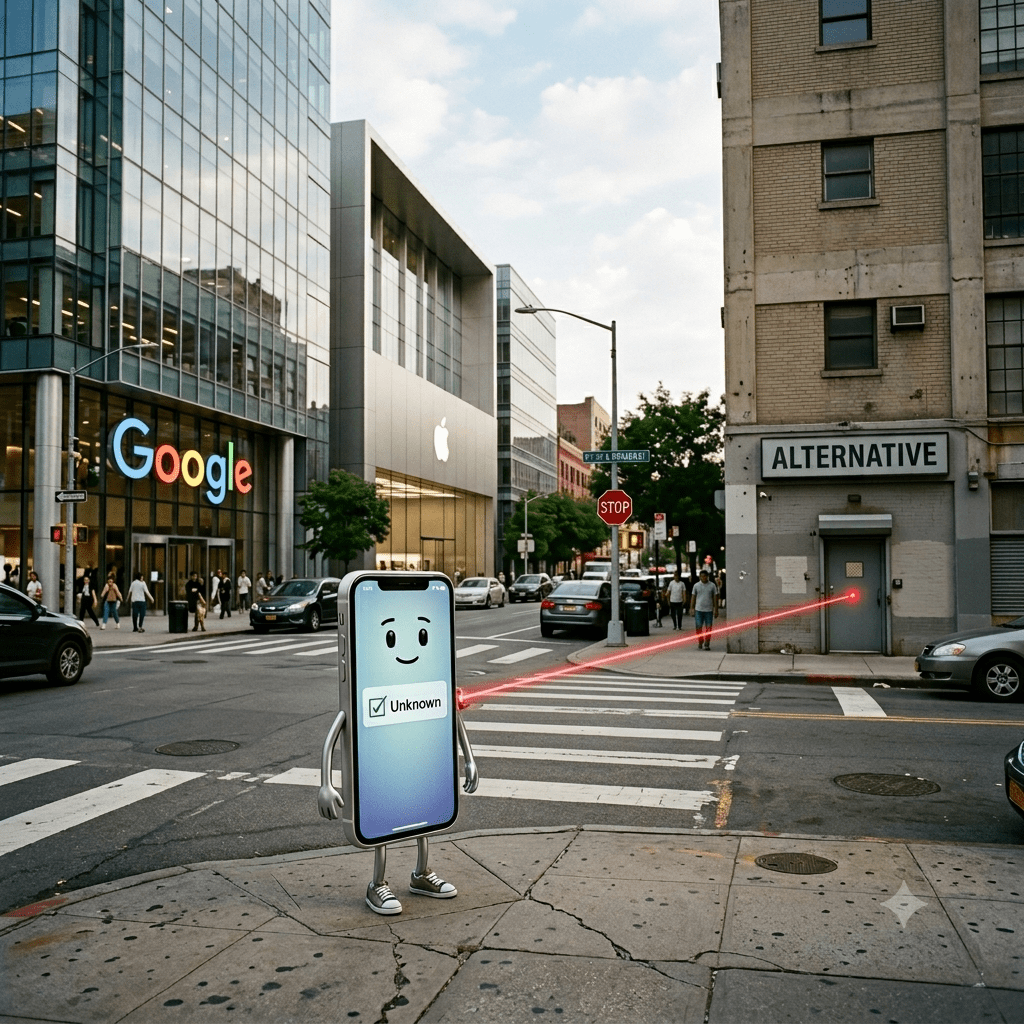
Apple and Google (and probably Samsung) defend their lockdown of their app stores (and the resulting 15-30% or so cut they receive from app revenue) by saying that their “App Store” and “Google Play Store” provide safety to users. Would you want to risk your phone by downloading from sleazy sources, or would you prefer to get your apps from the name that you trust?
If that were true, I wouldn’t have to clean a particular person’s phone every once in a while because he downloaded an app from one of those stores, which then proceeded to download a bunch of other apps.
But on the other hand, there are sometimes legitimate reasons to “sideload” Android apps (Android Package Kits, or APKs) from alternative sources. Maybe the app is one that shouldn’t be accessed by run-on-the-mill consumers, so therefore an alternative distribution mechanism is needed. I could name some examples, but if I named them I’d have to kill you.
But as Lifewire notes, you have to take a few extra steps to allow downloads from outside the App Store and Google Play Store.
The biggest step, of course, is to allow the download of “unknown” apps from non-Apple/Google sources. Needless to say, you should only download apps from a site that you trust. No, not mikrosofft.com.
- Open the Settings app and tap Apps or Apps & Notifications.
- Tap the three dots in the upper-right corner. If you don’t see that, skip down to the next step.
- Tap Special access, or Special app access on some Android devices.
- Tap Install unknown apps.
- Tap Chrome (or whichever web browser you use).
- Switch the toggle next to Allow from this source so it turns on.
For more details on APK installation, check the Lifewire page.

 Bredemarket